
Free AutoCAD utility · COUNTBLOCKS
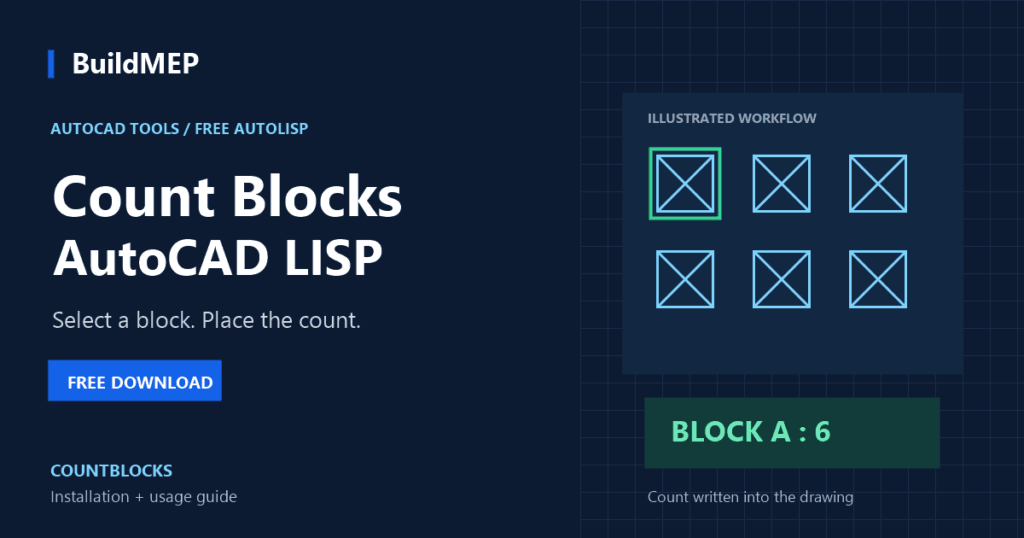
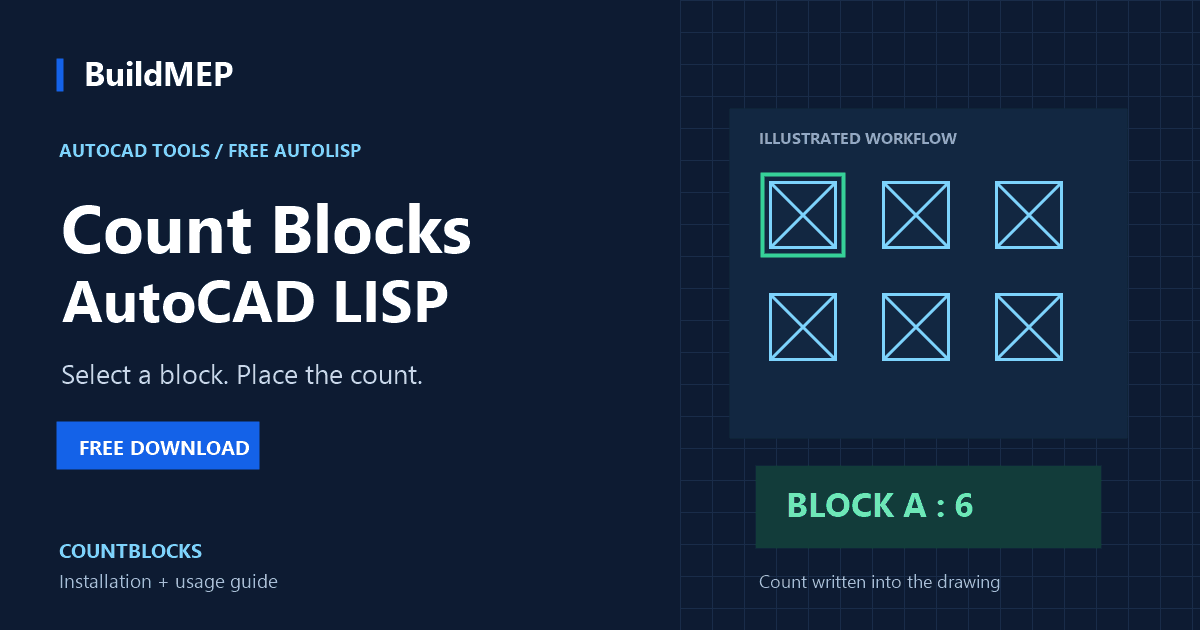
Count matching blocks by selecting one instance, then place the result as text in your drawing. Download the free Count Blocks AutoCAD LISP and follow the installation and usage steps below.
Download & quick specs
- PRICE
- Free
- VERSION
- 1.0
- DOWNLOAD
- ZIP archive
- TESTED WITH
- AutoCAD 2022
- COMMAND
- COUNTBLOCKS
- LEVEL
- Beginner
Extract countblocks.lsp from the ZIP, then load it with drag & drop or APPLOAD. Installation and usage instructions are on this page.
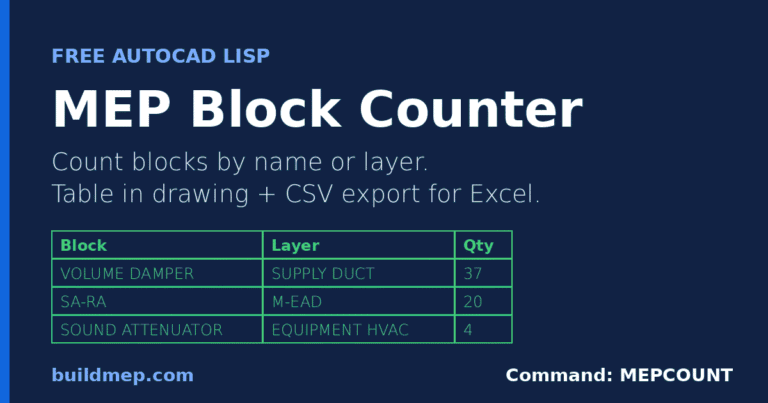
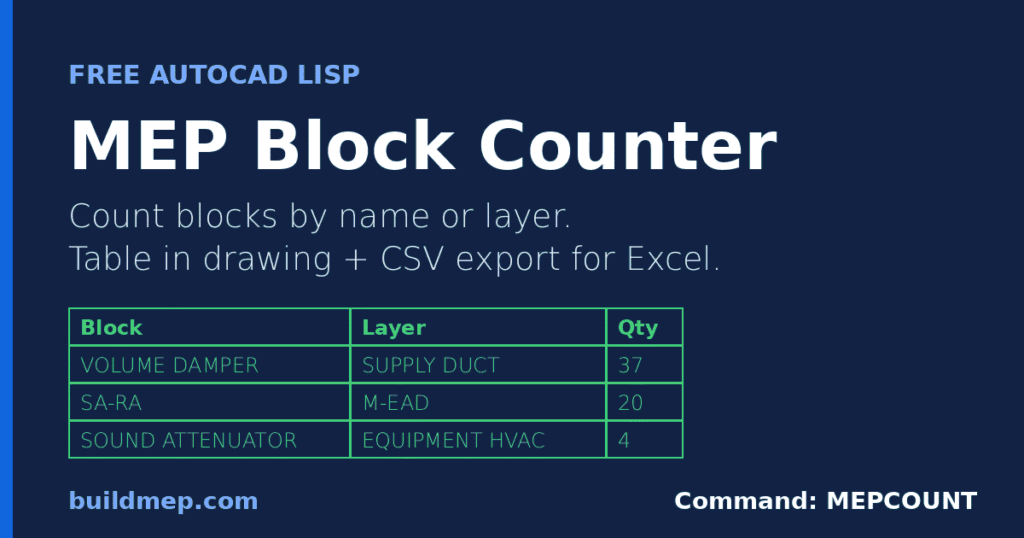
Need a table or Excel export? Use the separate MEP Block Counter (MEPCOUNT). This COUNTBLOCKS guide covers placing a single block quantity as text in the drawing.
What Is the Count Blocks LISP?
AutoCAD’s BCOUNT command reports block quantities in the command line. You can review that output in command history, but it does not automatically place a count label in your drawing.
The Count Blocks LISP fixes that. You click one instance of the block you want counted — no typing a block name, no risk of a typo — and the tool counts every matching instance in the drawing and writes the result as permanent text, placed exactly where you click. It doesn’t scroll away, it doesn’t disappear when you run your next command, and it’s still there the next time you open the file. Screenshot it for a submittal, leave it next to your equipment schedule, or just glance at it later — the result stays on screen because it’s now part of the drawing.
This workflow is useful for MEP, electrical, and quantity surveying teams, because so much of a takeoff is really “how many of X do I have” — diffusers, light fixtures, valves, fire alarm devices, structural connectors — where X is represented as a block.
Why Engineers Use This Tool
Manually counting blocks in a drawing is slow and unreliable, especially on:
- Dense floor plans with hundreds of overlapping symbols
- Drawings with blocks scattered across multiple layers
- Takeoffs where a missed count means a wrong material order
BCOUNT solves the counting problem but not the “where did that number go” problem — its output lives only in your command-line history. The Count Blocks LISP solves both: click the block, get the count, and have it permanently visible in the drawing instead of buried in a scroll-back log.
Common Engineering Applications
🌬️ HVAC & MEP Count diffusers, grilles, VAV boxes, thermostats, or FCUs across a floor plan for quick equipment schedules and quantity checks against the BOQ.
⚡ Electrical Count light fixtures, switches, receptacles, or panel symbols per floor or per zone — useful for lighting/power schedule verification.
🧯 Fire Protection Count sprinkler heads, smoke detectors, or fire alarm devices to compare device quantities with design schedules. A block count does not verify spacing or code compliance.
📐 Quantity Surveying Verify block-based quantity takeoffs (doors, windows, furniture, fixtures) against a BOQ line item before issuing a material order.
🏗️ Civil & Structural Count repeated structural symbols (bolts, connections, piles) across a site or foundation plan.
Why This Tool Saves Time
Consider a hospital floor plan with 340 ceiling diffusers spread across 40 rooms. Manually counting them means scrolling through the drawing, marking each one visually, and re-checking because it’s easy to double-count or skip one in a cluttered area. The time required depends on the drawing’s complexity and the checking method, and a miscount can affect the equipment order.
With the Count Blocks LISP, you run one command and get the matching block quantity without manually tallying each symbol. On a full building with multiple block types (diffusers, valves, fixtures), what used to be an hour of manual tallying becomes a few command entries.
How to Install the Count Blocks LISP
Method 1 — Drag & Drop
- Download the ZIP archive and extract
countblocks.lsp - Open your AutoCAD drawing
- Drag the
.lspfile directly into the AutoCAD window - The command loads automatically and is ready to use
Method 2 — APPLOAD
- Type
APPLOADand press Enter - Browse to the extracted
countblocks.lspfile - Select
countblocks.lsp - Click “Load”
- Click “Close”
- The command is now available for this session
(To load it automatically every session, add it to your Startup Suite inside the APPLOAD dialog.)
How to Use the Count Blocks Command
- Type
COUNTBLOCKSand press Enter - At the prompt, enter a text height for the result — or just press Enter to accept the suggested default, which matches your drawing’s current text size
- Click one instance of the block you want counted — the routine identifies it automatically, no typing required
- Click a second point anywhere in your drawing — this is where the result will be placed as text
- Done — the count appears both as permanent text in your drawing and on the command line
Because drawings vary hugely in scale — a detail at 1:50 needs very different text size than a site plan at 1:2000 — the tool asks for a height instead of guessing. If the suggested default looks right for that drawing, just press Enter; if not, type the size you want.
Because the result is placed as real text in the model (not just printed to the command line like BCOUNT), it stays with the drawing: position it next to an equipment schedule, a legend, or a takeoff note, and it’ll still be there the next time you open the file — no re-running the command to remember the number.
If you click something that isn’t a block, the tool tells you plainly instead of guessing or miscounting — just click a valid block instance and try again.
Frequently Asked Questions
Isn’t this the same as AutoCAD’s built-in BCOUNT command? Not quite. BCOUNT counts blocks and prints the result to the command line — and you can review it in command history. It does not automatically create a count label in the drawing. The Count Blocks LISP places the result as permanent text right in your drawing, so it’s still there next time you open the file, and you can position it next to a schedule or takeoff note instead of losing it to scroll-back history. It also lets you click the block instead of typing its name.
Is this tool free to use? Yes, the Count Blocks LISP is completely free to download and use.
Does it work with dynamic blocks? Yes — this has been directly tested. Dynamic blocks are stored internally under an anonymous system name, but the tool resolves and displays the block’s real, friendly name instead, and counts all visibility-state variations of that block together as one total. If you need counts broken out separately by visibility state or dynamic parameter, that requires an extended version of the script.
Which AutoCAD versions does this work on? It’s been tested and confirmed on AutoCAD 2022. It only uses basic AutoLISP functions that have been stable across AutoCAD releases for years, so it’s expected to work on other recent versions (older and newer) as well — but that hasn’t been directly verified yet. If you test it on a different version, let us know and we’ll update this page.
Does it work in AutoCAD LT? Autodesk supports AutoLISP in AutoCAD LT 2024 and later for Windows. Earlier LT releases do not support AutoLISP. This specific routine has only been tested in full AutoCAD 2022; compatibility with LT and other platforms has not been verified.
Can it count blocks across multiple drawings at once? Not in this version — it counts blocks within the currently open drawing only. Running it drawing-by-drawing is the current workflow for multi-sheet counts.
What if the same-looking symbol was inserted as two different block names? The routine matches by the exact block name it reads from the object you click, not by how the symbol looks. If the same visual symbol exists in your drawing under two different block definitions (common after copy-pasting between projects), run the command once per instance you click and add the results.
How do I control the size of the result text? The command asks for a text height before you click the block — press Enter to accept the suggested default (based on your drawing’s current text size), or type your own value. Drawings vary too much in scale for one fixed size to work everywhere, so this is deliberately left in your control rather than guessed. If you place it and it still looks wrong, you can always select the text afterward and change its height like any other text object.
Related BuildMEP Resources
- MEP Block Counter with Excel Export — use the separate MEPCOUNT tool when you need a table or CSV export.
- Total Length AutoCAD LISP — measure cumulative line length across a drawing
- AutoCAD Total Area LISP — sum up areas of closed polylines/regions
- Free Duct Sheet Calculator (SMACNA)
- Free HVAC Heat Load Calculator
Final Thoughts
Between Total Length, Total Area, and Count Blocks, you now have the three most common quantity-takeoff LISP utilities MEP and design teams reach for — measuring runs, summing areas, and tallying fixture counts — all through a one-line command instead of manual drawing review. As with any takeoff tool, always spot-check the LISP’s output against a manual sample count on your first few uses before trusting it fully on a bid-critical quantity.